
Common Rental LED Display Problems and Solutions
Live event screen failing? Discover the most common rental LED display problems—from dead pixels to total blackouts—and practical, on-site solutions to save your stage production immediately.
-
Part 1: Visual and Image Display Issues
-
Part 2: Power and Signal System Failures
-
Part 3: Summary Checklist for Event Technicians
-
Conclusion & Prevention: Choose Battle-Tested Rental Hardware
-
Part 4: Frequently Asked Questions (FAQ)
In the event production and AV rental industry, timing is everything. Whether it is a massive outdoor music festival, a high-profile corporate product launch, or a wedding stage, a flawless visual display is non-negotiable.
However, because rental LED displays are frequently assembled, disassembled, and transported, they are far more prone to wear and tear than fixed installations. A single black cabinet or a flickering module can jeopardize the entire event and damage your rental brand’s reputation.
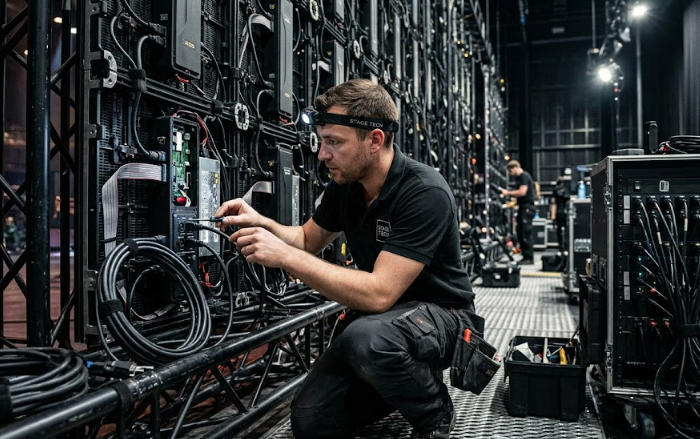
This comprehensive guide breaks down the most common rental LED display problems and provides step-by-step technical solutions to keep your screens running flawlessly.
Part 1: Visual and Image Display Issues
Visual flaws on the screen are immediately noticeable to the audience. Most of these issues stem from physical damage during transit or connection failures at the module level.
1. Single LED Modules are Black or Missing Color
-
The Symptom:One or more rectangular puzzle-like sections (modules) on a cabinet are completely black, or missing a specific color (e.g., showing only red and blue, but no green).
-
The Cause:
-
The power or data ribbon cable connecting that specific module to the hub card is loose or damaged.
-
The 5V DC power output from the switching power supply to that module is disconnected.
-
-
The Solution:
-
Check the flat ribbon cable at the back of the cabinet; unplug and re-insert it firmly.
-
If the problem persists, swap the cable with a known working one from an adjacent module to isolate whether it is a cable or a module defect.
-
Check the 5V power cable connector feeding that module.
-
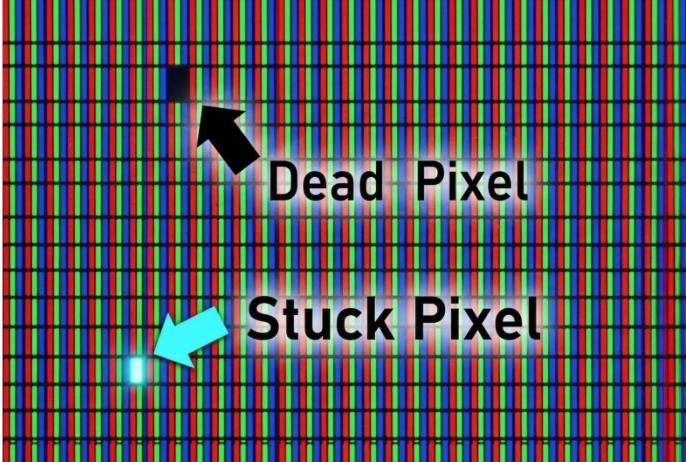
2. Dead Pixels or “Always-On” Bright Dots
-
The Symptom:Individual tiny dots (pixels) remain dark, or stick to one solid bright color (usually bright red, green, or blue) regardless of the video playing.
-
The Cause:Physical impact during rapid setup or teardown often knocks off the fragile SMD (Surface Mounted Diode) chips or breaks the solder joints.
-
The Solution:
-
Emergency Fix:For live events, use the LED control software’s “pixel calibration” or dark spot compensation to mask the brightness of surrounding pixels slightly.
-
Permanent Fix:Swap the damaged module with a spare module from your flight case. The defective module should be sent back to the workshop for precise micro-soldering (replacing the SMD lamp bead or IC driver chip).
-
3. Ghosting, Flickering, or Blurred Images
-
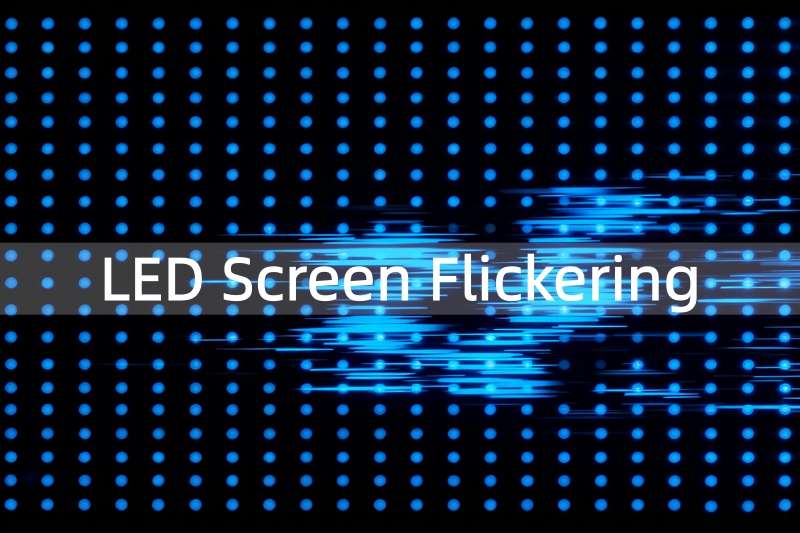
The Symptom:The screen shows a faint trail of previous frames (ghosting), waves rolling across the screen, or rapid flickering.
-
The Cause:
-
Low refresh rate settings in the sending card/processor.
-
Poor grounding of the LED structure or power distribution box.
-
Long or low-quality flat ribbon cables inside the cabinet catching electromagnetic interference.
-
-
The Solution:
-
Open your control software (e.g., NovaLCT) and ensure the Refresh Rateis optimized (industry standard for rental is $\ge 3840\text{Hz}$).
-
Ensure the main power source and the truss structure are properly grounded to eliminate static and electrical noise.
-
Part 2: Power and Signal System Failures
System-level failures are critical because they often take down large sections of the display wall simultaneously.
1. The Entire LED Wall or Large Sections are Completely Black
-
The Symptom:The main processor is playing video, but the entire screen wall (or an entire column/row of cabinets) is dead silent and dark.
-
The Cause:
-
Main AC power supply breaker tripped or disconnected.
-
The main signal input cable (Ethernet cable) from the sending card to the first cabinet is unplugged or broken.
-
-
The Solution:
1.Verify Power Sources:Step 1。
Check the main distribution box (PDB). Ensure the three-phase power or single-phase power breakers are switched on and delivering the correct voltage (110V/220V).
2.Check the Main Signal Cable:Step 2。
Inspect the primary RJ45 Ethernet cable running from the LED Video Processor/Sending Box to the very first cabinet in the chain. If the indicator light on the first cabinet’s receiving card is not flashing, replace this cable immediately.
3.Inspect Software Mapping:Step 3。
Log into your LED control interface. Ensure the screen connection mapping file (.rcfgx or similar configuration) is loaded correctly and that the output port of the sending card is mapped to the right screen layout.
2. Signal Drops or “Blinking” Across a Column of Cabinets
-
The Symptom:A vertical string of cabinets suddenly goes black for a second, then comes back on, repeating randomly.
-
The Cause:A loose main network loop connection between two cabinets, or a failing receiving card in the chain.
-
The Solution:
-
Locate the firstcabinet in the dark column. The issue is almost always the signal inputof this cabinet or the signal outputof the cabinet right before it.
-
Unplug and securely re-seat the waterproof aviation network connectors (e.g., Neutrik EtherCON).
-
Pro Tip for Rental Houses:Always configure a Signal Redundancy Loop. Run a backup network cable from the last cabinet back to a secondary port on the sending box. If one cable fails, the backup loop takes over instantly with zero downtime.
-
Part 3: Summary Checklist for Event Technicians
To help your crew diagnose issues under pressure, use this quick reference table during live event setups:
| Common Phenomenon | Suspected Component | Immediate On-Site Action |
| Random color blocks on a single cabinet | Hub Card or Receiving Card | Re-seat the hub card connection or reload the cabinet RCFG file. |
| Half of a single module is dark | Driver IC on the Module | Replace the module with a spare; repair the IC post-event. |
| Cabinets powered on but show “No Signal” | Inter-cabinet Ethernet Cable | Swap out the network patch cable between the working and non-working cabinets. |
| Outdoor screen shuts down in extreme heat | Power Supply / Thermal Cutoff | Ensure the cabinet fans are working; add industrial shading or misting fans behind the stage. |
Conclusion & Prevention: Choose Battle-Tested Rental Hardware
Most common rental LED display problems can be solved in minutes with proper troubleshooting, but the best solution is prevention. Investing in high-quality hardware designed specifically for the rigors of the road saves thousands of dollars in labor and repair costs.
When sourcing rental LED displays, always prioritize:
-
Rugged Cabinet Designs:Die-cast aluminum cabinets with corner protectors to safeguard fragile edge SMDs during rapid loads.
-
Modular Quick-Replace Design:Power boxes and modules that can be swapped out from the front or rear in under 10 seconds without tools.
-
Premium Internal Components:High-refresh-rate driver ICs ($\ge 3840\text{Hz}$or $7680\text{Hz}$) and gold-wire SMD lamps that withstand vibrations during transport.
Are you looking to upgrade your rental fleet with durable, high-performance stage screens? Contact our technical team today for robust, road-ready LED display solutions tailored for demanding event environments.
Part 4: Frequently Asked Questions (FAQ)
How often should rental LED displays be serviced to prevent on-site failures?
A:For active rental companies, we recommend a three-tier inspection routine:
-
Pre-Event (At the Warehouse):Test every cabinet by running a full-color cycle (Red, Green, Blue, White) to catch dead pixels or loose ribbon cables before loading the flight cases.
-
On-Site (Post-Assembly):Check all power and signal connections and verify structural leveling.
-
Quarterly Deep Clean:Blow out dust from the power box, check cooling fans, and tighten internal power terminal screws which can loosen due to road vibrations.
What causes an outdoor rental LED screen to turn off unexpectedly in summer?
A:This is usually triggered by Thermal Over-Protection. High-quality LED power supplies have a built-in safety cutoff that triggers when internal temperatures exceed a safe threshold (usually around $85^\circ\text{C}$or $185^\circ\text{F}$). If your outdoor screen sits under direct sunlight without proper ventilation, the power box will shut down to prevent permanent hardware damage. Always ensure the integrated cabinet fans are clear of obstruction, and consider adding sun shading for backstage electronics during extreme heat waves.
Why is my stage LED screen flickering on camera during live streams?
A:This is caused by a mismatch between the camera’s shutter speed and the LED screen’s Refresh Rate. If your screen uses cheap driver ICs with a low refresh rate (e.g., $1920\text{Hz}$), horizontal black lines or intense flickering will appear on smartphone screens and broadcast cameras. For professional event rentals, always use screens with a refresh rate of at least $3840\text{Hz}$(or $7680\text{Hz}$for high-end broadcasting) to ensure crystal-clear, camera-ready visuals.
Can I mix different batches of LED rental cabinets together for a larger stage?
A:It is not recommendedfor seamless walls. Even if the cabinets are from the same manufacturer and share the same pixel pitch (e.g., P3.91), different production batches use different LED lamp wafer lots and driver IC batches. This results in subtle variations in color temperature, brightness, and wavelength. If you mustmix batches for an urgent event, you will need to perform a comprehensive On-site Pixel-by-Pixel Calibrationusing professional calibration cameras and software to balance the uniformity as much as possible.
What is the fastest way to fix a “Signal Lost” emergency during a live show?
A:The ultimate lifesaver is Signal Redundancy (Loop Backup). Ensure your technicians configure a closed-loop signal pipeline in the control software during setup. This means signal flows from Port A through the screen to the last cabinet, and a backup cable runs from that last cabinet back to Port B on the processor. If any single network cable in the middle gets kicked, pinched, or fails during the show, the system instantly switches to the backup route from the opposite direction within milliseconds, preventing any visual interruption on stage.
Post time: Jun-11-2026